LogickeyboardCookies

In order to improve the user experience on our website, we would like to register information about you using our own cookies as well as cookies from third parties. With cookies we support various purposes on the website: Functionality, statistics and marketing. By pressing "Accept all" you consent to all these purposes. You can also choose to indicate which purposes you want to consent to by using the buttons next to the purpose and pressing "Accept selected". You can read more about cookies in our general section about privacy policy.
TITAN keyboard guide and support

TITAN keyboard guide and support

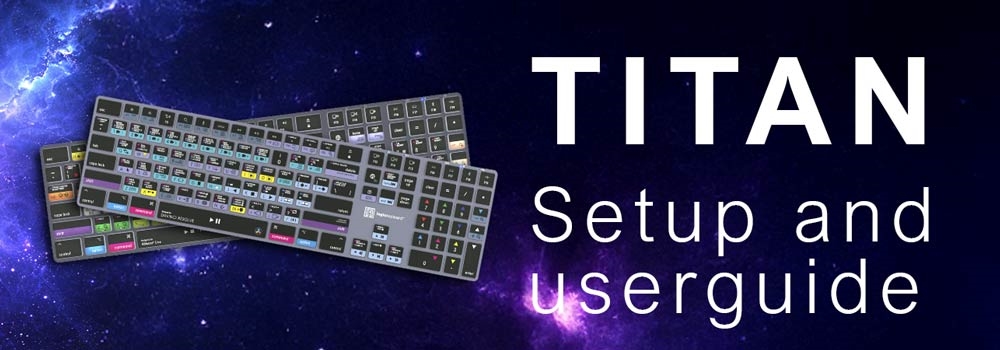
TITAN keyboard - Setup and userguide

Thank you for choosing the TITAN Logickeyboard. The TITAN keyboard series is designed to deliver a reliable typing experience
with backlit keys, dual connectivity and a durable chiclet key chassis.

This page provides a practical overview of how to set up, use and maintain your TITAN keyboard.
You will also find troubleshooting tips and factory reset guidance.


Using the TITAN keyboard

The TITAN keyboard is designed for flexible everyday use. These functions help you quickly set up the keyboard
and maintain stable operation during daily work.


1
Getting started
Before using the TITAN keyboard for the first time, charge the battery using the included USB cable. Turn the keyboard on and the LED indicators will briefly light up.
2
Bluetooth connection
When you power up the TITAN keyboard for the first time, it enters Bluetooth pairing mode. Enable Bluetooth on your computer and select the TITAN keyboard from the list of available devices.
3
USB wired connection
The TITAN keyboard can also be used as a wired keyboard. Connect the USB cable to the keyboard and computer, then switch the keyboard to USB connection mode.
4
Backlit keys
TITAN keyboards include adjustable backlit keys that improve visibility in different lighting environments. The backlight turns off automatically after inactivity to preserve battery power.
 
 
Fn key behavior on Mac
On Mac models, the Fn key can be locked or unlocked using the dedicated key combination [Command + Fn]. This can be useful if you want quick access to function keys without pressing the Fn key each time.
 

Status, connectivity, maintenance

Several built-in features help you monitor keyboard status and maintain reliable operation during everyday use.

 
LED status indicators
• Battery level
• Bluetooth connection
• Blinking blue LED: Keyboard is in pairing mode
• Solid blue LED: Keyboard is connected
• Blinking blue LED after previous use: Connection is lost
• USB wired connection
• Caps Lock
• Fn lock
Battery and power
The TITAN keyboard uses a rechargeable lithium battery designed for extended use. Battery life depends on the brightness level of the backlight and keyboard usage.

To preserve battery power, the keyboard will enter sleep mode during wireless use. When connected to a cable or a 5V external power source, the keyboard will remain awake, even while using Bluetooth connectivity.
Dual connectivity
TITAN keyboards support both Bluetooth wireless and USB wired connection, making it possible to switch between connection methods depending on your setup.
Cleaning
Turn the keyboard off before cleaning and use a lint-free cloth to wipe the keys gently. Avoid liquids and strong cleaning chemicals.
 

Troubleshooting

If your TITAN keyboard does not behave as expected, the following checks often resolve common issues.


Bluetooth connection issues

Make sure Bluetooth is enabled on your computer and that the keyboard is within wireless range. Confirm that the keyboard is turned on and not already connected to another device.

Blinking blue LED: Keyboard is in pairing mode
Solid blue LED: Keyboard is connected
• Blinking blue LED after previous use: Connection is lost

If the keyboard does not reconnect then perform a Factory Reset and Pair the keyboard again.

Keyboard disconnecting

1)   Check if the battery LED is red, indicating low battery.
2)   Verify that the correct connection is active (wireless or wired).
3)   Disconnect and reconnect the keyboard if necessary.

Windows note
Connection may be unstable on some Windows PCs depending on the quality of the built-in Bluetooth adapter.

If you experience frequent disconnections, try connecting the keyboard to another Bluetooth device, such as a phone, to verify whether the issue is related to your computer. If so, adding a dedicated Bluetooth dongle to your PC may improve connection stability.
Keyboard is not charging
Try another USB port or cable and confirm that the power source provides power.
Connection mode confusion
Because TITAN keyboards support both Bluetooth and USB connection, check that the intended connection type is active.
   

Factory reset the TITAN keyboard

If the issue is not resolved using the methods above, please try the following factory reset procedure before returning your TITAN keyboard. This may help restore normal operation.


1. Make sure the TITAN keyboard is turned on.
2. Press and hold the following keys at the same time:
  • For macOS: Esc + OPT key + F18
  • For Windows: Esc + ALT key + Bluetooth key
3. Continue holding the keys until all keyboard lights flash.
4. Release the keys.
5. Turn the keyboard off, then on again.
6. Reconnect the keyboard through Bluetooth.
 

A factory reset clears stored Bluetooth connections and restores the keyboard to its default state.


How to pair the TITAN keyboard


1. Turn on the keyboard - The Bluetooth indicator LED will start blinking, indicating pairing mode.

2. Open Bluetooth settings on your device - Make sure Bluetooth is enabled on your computer, tablet or phone.

3. Select the TITAN keyboard - When the keyboard appears in the list of available devices, click to connect.

4. Confirm connection - The Bluetooth indicator LED will light permanently when connected.
 

If the keyboard does not appear:
Press and hold the Bluetooth key
 on the keyboard for 2 seconds to enter pairing mode again.


TITAN keyboard FAQ

Find answers to common questions about using the TITAN keyboard on Windows and Mac.


Windows

 
How do I connect the keyboard via Bluetooth?


When you power up the Titan keyboard for the first time, it automatically enters pairing mode. The Bluetooth indicator LED (blue) will flash slowly.

1)    In your Windows OS, navigate to Bluetooth settings.
2)    Make sure Bluetooth is turned on
3)    Click Add new Bluetooth device
4)    When Titan keyboard appears on the list, click to connect
5)    When the keyboard is successfully paired, the Bluetooth indicator LED (blue) will light permanently.
6)    If you later wish to pair your Titan keyboard to another Bluetooth device, you can easily enter pairing mode again with a long key press of Bluetooth key. Press and hold the key for 2 seconds. The Bluetooth indicator (blue) will flash slowly indicating the keyboard is searching for a new host. Follow step 1-4.

How do I use my keyboard USB wired?


1)   Connect the included USB cable to the Titan keyboard and to your PC.
2)   Press [USB key] to switch to USB wired connection.
3)   After the keyboard connectivity is changed to USB wired, the associated green USB indicator will light permanently.

Where can I find the TITAN Windows manual?


TITAN manual for Windows

How do I control the backlit keys?


The Titan backlit keys are adjustable in five levels: 100%, 80%, 60%, 40%, 20% and 0% off.
To control the levels, use the two dedicated backlit keys in the upper right corner of the numpad area (below the battery LED).

To prevent unintentional loss of battery power, the backlight goes to 0% after 2 minutes of inactivity and comes back on with a key press. 

Is there a Print Screen/PrtScrn key?


Yes. There is a Screenshot key on this TITAN PC keyboard - the key to the right of the F12 key.

Mac

 
How do I connect the keyboard via Bluetooth?


When you power up the Titan keyboard for the first time, it automatically enters pairing mode. The Bluetooth indicator LED (blue) will flash slowly.

1)    Go to System Preferences on your Mac, iPad or iPhone, and choose Bluetooth.
2)    Search for the Titan keyboard and click connect
3)    When the keyboard is successfully paired, the Bluetooth indicator LED (blue) will light permanently.
4)    If you later wish to pair your Titan keyboard to another Bluetooth device, you can easily enter pairing mode again with a long key press of [Fn+F18]. Press and hold the two keys for 2 seconds. The Bluetooth indicator (blue) will flash slowly indicating the keyboard is searching for a new host. Follow step 1-4.

How do I use my keyboard USB wired?


1)   Connect the included USB cable to the Titan keyboard and to your Mac.
2)   Press [Fn+F19] to switch to USB wired connection.
3)   When the keyboard is in USB mode, the green USB LED indicator will light permanently.

If the keyboard is still not connected or you need to reconnect:

1)   Unplug and replug your keyboard, and the Keyboard Setup Assistant may appear. Follow the on-screen instructions to identify the keyboard.

It is normal that macOS cannot automatically recognize a keyboard. This does not indicate a fault.

2)   If the Keyboard Setup Assistant does not appear automatically when reconnecting your device go to System Settings > Keyboard and click “Change Keyboard Type”.

3)   Press the key the assistant asks for to complete the setup.

Where can I find the TITAN Mac manual?


TITAN manual for Mac

How do I control the backlit keys?


The Titan backlit keys are adjustable in five levels: 100%, 80%, 60%, 40%, 20% and 0% off.
The key illumination is controlled with the following key combinations:

[Fn+F16] for illumination down
[Fn+F17] for illumination up.

To prevent unintentional loss of battery power, the backlight goes to 0% after 2 minutes of inactivity and comes back on with a key press. 

How do I lock the Fn modifier key?


To eliminate pressing the Fn modifier key for every Mac OS shortcut control, the Fn key can be locked with the key combination [Command+Fn].
When locked the Mac OS controls are directly accessible and the designated fn LED indicator (blue) lights up. 


General

 
Is it possible to see the battery status in the Bluetooth wireless connection?


There is a Battery indicator LED (red) on the keyboard to indicate the battery status:
• On = Battery being charged
• Off = Battery is fully charged, or USB cable is not connected
• Flashing = Battery power level is low, and it is time to insert cable to recharge

Do TITAN keyboards require drivers?


No. A TITAN keyboard works as a standard keyboard. Simply connect it via Bluetooth or USB and start using it.


Need further help

If you have any issues after troubleshooting or factory resetting the keyboard, please contact Logickeyboard support for further assistance.

Delivery country
Please confirm your location, to set prices, currency and delivery correct.